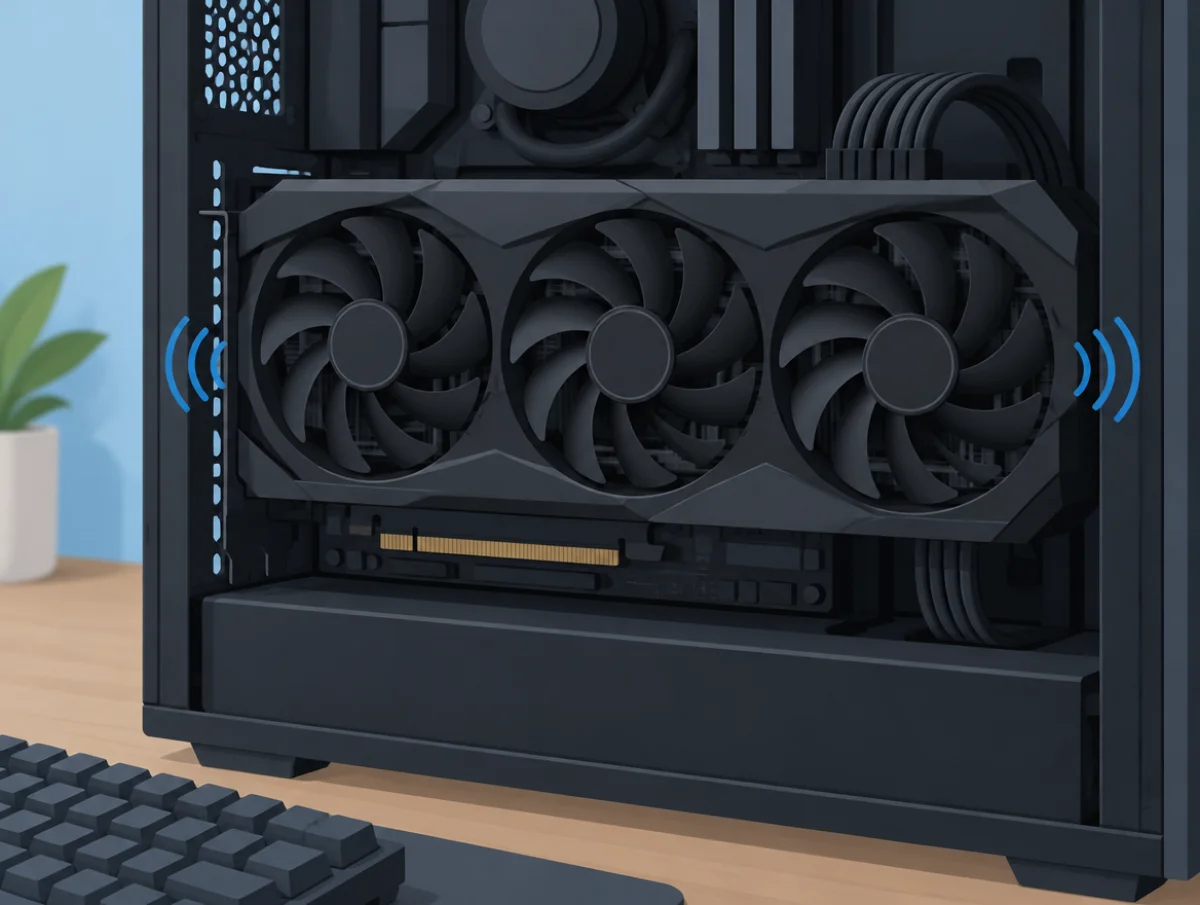
A graphics card can make two very different kinds of noise. One is electrical: a thin whine, squeal or buzz from the card's inductors that rises and falls with the frame rate. The other is mechanical, and it comes from the fans as a tick, a rattle, a grind, or a roar that climbs with temperature. Working out which one you have comes first, because the fixes share nothing.
The support pages behind this guide come from ASUS, MSI, GIGABYTE, ZOTAC, SAPPHIRE, PNY and EVGA among the card makers, and from NVIDIA, AMD and Intel for the chips and drivers, all read on November 16, 2026. EVGA's FAQ is no longer online, so its coil whine answer is quoted from an August 2025 Internet Archive copy. ZOTAC's site stopped our browser at a security check, so its two FAQs also come from archived copies. PowerColor and XFX publish nothing on noise that we could find.
| Sound | What it usually is | Maker pages that cover it | First step |
|---|---|---|---|
| High whine or buzz that follows the frame rate | Coil whine | ASUS, MSI, EVGA, Intel, PNY | Cap the frame rate |
| Silence at the desktop, fans not turning | Fan stop mode | ASUS, MSI, ZOTAC, GIGABYTE, AMD, PNY, SAPPHIRE | None, if the fans start when the card warms |
| A loud burst at power-on, then quiet | Fan self-test | PNY | None |
| Fan noise climbing in games | GPU temperature rising | ASUS | Check for stray programs, airflow and dust |
| Ticking, scraping or rattling | Something touching or caught in the fan | MSI | Power off and look |
| Fans still at boot and when hot | Fan or control fault | MSI, ASUS, ZOTAC | Contact the maker |
Which sounds does a healthy graphics card make?
A fan whose pitch follows the GPU temperature, a faint whine when frames are rendered very fast, and on most recent cards, silence at the desktop. All three appear in maker FAQs as normal behavior.
ASUS's cooling troubleshooting guide explains that the fan speed adjusts itself to GPU temperature, so gaming, video editing, transcoding and large data jobs speed it up, and "This may result in louder fan noise." The same guide blames dust, hair and debris in the vents when a card runs hot and loud for no good reason.
Startup has its own sound. PNY's GeForce FAQ answers the question of fans that roar at power-on and then stop: many cards run "a brief fan self-test at startup before switching to idle mode." Nothing is wrong.
A whine that tracks the frame rate is coil whine
Coil whine is the coil inside an inductor vibrating as current passes through it. Every card and chip maker that writes about it treats it as harmless to the hardware.
EVGA's coil whine FAQ gives the clearest picture. A high-end card uses "ten or more large inductors" to feed power to its critical parts, and nearly all of them vibrate at pitches far above what people hear. Now and then one lands inside the audible range. EVGA compares the effect to a damp finger run around the rim of a wine glass, and it files the answer under keywords that include "electrical buzz," which is how many owners describe it.
Speed is the trigger. EVGA calls whine "particularly common" when a card renders 100 FPS or more, and worst in a game menu with no frame cap and no V-sync. Intel's Arc article agrees that it "usually happens" at a high frame rate.
ASUS frames it as a change in current when system load shifts, causing resonance in components on the board. Its high-frequency noise FAQ adds two reasons one owner hears it and another doesn't: a quiet room, and ears that are more sensitive to high pitches. ASUS will reduce the noise "as much as possible" but admits it "can't be completely eliminated." MSI's coil whine answer rules out damage and any effect on performance, and the PNY FAQ calls the sound common in high-performance GPUs, varying "by system load and PSU."
Capping the frame rate in the driver
Fewer frames mean less current swinging through the coils. Intel's four recommendations start there: cap FPS to the monitor's refresh rate or lower, enable V-Sync, check the power supply, and back off any overclock.
Both driver suites have a cap built in. In the NVIDIA Control Panel's Manage 3D Settings, Max Frame Rate is off by default; switched on, it offers a slider from 20 to 1000 fps. A second setting, Background Application Max Frame Rate (20 to 200), limits a game left running behind another window, which NVIDIA says helps with power use or fan noise. AMD's Radeon Overlay article puts Frame Rate Target Control between 30 and 300 FPS, off by default, and notes that changes have to be made before the game is launched.
A 144 Hz monitor cannot show more than 144 frames a second, so a cap at the refresh rate costs nothing you could see.
Trying another power supply
The rest of the PC shapes the sound too. EVGA wrote that "different motherboards and power supplies" have the biggest effect on how much whine you hear, and that adding or removing other parts can change it.
Its advice for severe whine is a swap test: put the card in a completely different system, or run it from another power supply, to confirm the sound belongs to the card. If it still whines badly, contact support. Intel's list carries the same idea in shorter form, "Double checking the power supply efficacy." Power supplies whine on their own as well, and the signs are covered in power supply noises.
Silent fans at idle are a fan stop mode
A card whose fans sit motionless on the desktop is almost always cooling passively by design. The makers just name it differently: ASUS calls it 0dB, MSI Zero Frozr, ZOTAC FREEZE, AMD Zero RPM, and SAPPHIRE Intelligent Fan Control.
PNY's FAQ answers it in one line, saying most modern RTX cards keep the fans off at idle and only spin them up under load. ZOTAC's fan stop FAQ says FREEZE is on out of the box and needs nothing from the owner, but only some models have it; look for the FREEZE badge on the box, product page or brochure. MSI's fan not spinning guide sends owners to the datasheet's FEATURES section for a Zero Frozr icon. On AMD Software's tuning page, Zero RPM ships enabled. SAPPHIRE's RX 6700 XT launch page promises that light workloads run "using passive cooling for complete silence."
Start and stop points by maker
Only a few makers print numbers, and older pages cover older cards.
| Cards | Feature | Fans start | Fans stop |
|---|---|---|---|
| ASUS RTX 3090, RTX 3080 | 0dB | Above 55°C or 100 W | Below 50°C and 50 W, 0dB mode on |
| ASUS RTX 3070 | 0dB | Above 55°C or 100 W | Below 50°C and 40 W, 0dB mode on |
| ASUS RTX 3060 Ti | 0dB | Above 52°C or 100 W | Below 48°C and 40 W, 0dB mode on |
| ASUS RTX 4090, 4080, 4070 Ti, 4070 and RTX 50 series | 0dB | Above 55°C or 100 W | Below 50°C and 50 W, 0dB mode on |
| MSI GeForce GTX 10 series GAMING cards | Zero Frozr | Not stated | Under 60°C |
| ZOTAC GTX 950, GTX 960, GTX 980 Ti | FREEZE | Within 58 to 63°C | Not stated |
| GIGABYTE GTX 960 (GV-N960WF2 models) | Fan stop | Above 59°C | Below 58°C |
| GIGABYTE R9 390X and R9 390 (GV-R939 models) | Fan stop, with a Silent/Stop LED | Above 64°C | Below 63°C |
The ASUS figures come from its fan start and stop FAQ, which warns that real wattage and temperature vary with configuration, usage and power settings. Notice the gap: an ASUS card that has started its fans keeps them turning until the chip has cooled five degrees below the start point and the board draws less power. The GIGABYTE cards in one FAQ and another leave a single degree. On the R9 390 models a Silent/Stop LED lights while the fans are parked.
MSI's older FAQ lists GTX 1050, 1060, 1070 and 1080 GAMING models and gives the reason as noise reduction. ZOTAC's archived answer says its fans should be turning beyond 63 to 64°C.
How to keep the fans spinning
You don't need to, for noise. Some owners still prefer fans that never stop, and each maker has a switch.
- MSI: MSI Center, Cooling Wizard, then turn off Zero Frozr AI Cooling.
- ZOTAC: FireStorm, Manual with a fixed slider speed, or ADVANCED with a custom fan curve.
- AMD: AMD Software, Fan Tuning, Zero RPM off.
- ASUS: switch 0dB fan mode off in GPU Tweak, since its stop conditions require it on.
ZOTAC notes that newer models with Active Fan Control have two fan groups, so set Group 1 and Group 2.
Why do GPU fans keep revving up and down?
Fans follow temperature and temperature follows load, so a fan that surges and settles is usually tracking work the card is doing. Find the work first.
ASUS's guide starts with Task Manager, looking for programs using more of the GPU than they should and ending them. A game or launcher left open behind other windows can keep the card busy; NVIDIA's background frame cap exists for that case. A card hovering near its start temperature may also bring its fans on for a short burst and then, once the chip cools past the stop point, park them again.
Some older cards were built to hold back. On the GIGABYTE R9 290X and 290 models in its silent mode FAQ, a switch in the SW2 position keeps the fans slow until the GPU is quite hot, then lets them climb, while SW1 runs a performance profile; GIGABYTE wants the BIOS updated before you change it.
Ticks, rattles and grinding come from the fan
A clean, quiet card can start to tick because something has moved. MSI's fan noise page gives four checks in order, and the first is the easiest to miss: cables or support frames resting against the fan.
Support frames include the anti-sag brackets many builders fit under heavy cards. Next, MSI has owners look at the blades. Damage to any blade means stop using the card and contact MSI's after-sales service. A foreign object inside the fan, such as a screw, also means stop: remove it with pliers if you can, or get help from MSI. Only after that does it point at dust on the fan and heatsink, cleared with a can of compressed air or a long, thin brush.
ASUS adds the safe way to do the cleaning in its boot troubleshooting FAQ. Turn the PC off, unplug it, take the card out and brush the dust away with a small brush. It also says not to take the card apart, since improper disassembly may void the warranty, and to stop using a card whose fan has failed because it "may cause card damaged."
Grinding gets no description of its own on any card maker page we found. A fan that still grinds after the checks above is a job for the maker: MSI's last step is its customer service center, and ASUS sends a fan that has stopped working to a service center for "fan or cooling module inspection and replacement." SAPPHIRE builds some NITRO+ cards with Quick Connect fans that come off with one screw for cleaning, and says its dual ball bearing fans last up to 85% longer than sleeve bearing fans.
When does a noisy card need service?
Stop and contact the maker in these cases:
- MSI: the fans do not spin even at the moment the PC boots.
- MSI: a fan blade is damaged.
- ASUS: a 0dB card whose fans stay still once the start condition is met, after a driver update and cleaning.
- ZOTAC: FREEZE fans still stopped beyond 63 to 64°C.
- EVGA: severe whine that follows the card into another system or onto another power supply.
- Intel: extreme whine that the frame cap and other steps do not help.
Coil whine alone sits in a different place from a broken fan. MSI and PNY call it no defect, and none of the makers here promises a replacement for it, so the swap test is your evidence if you do ask.
Quieter settings the makers offer
Fan curves come first. AMD Software's Advanced Control plots fan speed as a percentage against temperature in Celsius, with Fine Tuning Controls for exact points, and its Quiet preset lowers both power and fan speed together. ZOTAC's FireStorm draws the same kind of stepped curve, ASUS points owners to fan modes in GPU Tweak III, and MSI's Cooling Wizard sits inside MSI Center.
Some cards carry a quieter firmware. SAPPHIRE's NITRO+ RX 6700 XT has a Dual BIOS whose Secondary or Silent setting "reduces clock targets and raises target temperatures," switchable from TriXX. Overclocks work against you: ASUS suggests restoring default clocks if the card runs hot, and Intel lists reducing overclocking among its whine remedies.
The case matters as much as the card. ASUS wants the PC on a hard, flat surface rather than carpet or a closed cabinet, with open space around every vent, and more case fans if airflow inside is weak. Its quickest test is to open the side panel: if the GPU temperature drops noticeably, the case or the room is the problem, not the card. Cases built around airflow and quiet are compared in the quietest PC cases guide, and the fans to fill them in quietest PC fans.
Where to go next
Grinding processor fans, AIO pump gurgles and case fan hums are covered in computer fan noises. For a step-by-step pass over every fan in a tower, read how to make PC fans quieter. If the swap test points at the power supply, the quietest power supplies guide lists the units whose makers publish noise figures.