F2 on an ASUS NUC, F1 on a Lenovo ThinkCentre, F10 on an HP Elite Mini, Del on a Geekom or a Beelink. On the mini PCs whose makers publish fan settings, the quietest one is mostly reached with a key pressed at power-on, inside the BIOS, rather than in a Windows app.
That sets these small desktops apart from laptops, whose quiet modes mostly sit in the makers' Windows software, as the laptop fan guide shows. Placement matters too, and so does firmware: a few of the fixes below are BIOS or EC updates rather than menu changes.
What follows collects what ASUS, Lenovo, HP, Dell, Geekom, Beelink and Apple publish for small desktops, from service guides, user guides and support articles. Towers with fan headers and curve software get a separate guide to PC fans, and single sounds, from grinding to clicking, are matched to causes in computer fan noises explained.
How do you reduce mini PC fan noise?
Cut mini PC fan noise in this order: the BIOS quiet setting, open air around the vents, a dust check, then a BIOS or EC firmware update if the fan ignores its settings.
- Open Task Manager and see whether the fan follows the workload.
- Set the quiet mode in the BIOS, using the names in the table below.
- Stand the box on a hard, level surface, out of cabinets and off carpet.
- Leave 10.2 cm (4 inches) of space on every vented side, as HP asks.
- Clean the vents every 3 to 12 months, on the maker's schedule.
- Update the BIOS, plus the EC firmware on a Geekom, if settings change nothing.
- Contact the maker about clicks, grinding or a fan that never slows.
None of these needs a new part. The declared figures near the end show how far apart mini PCs sit when they fail.
Why is my mini PC fan so loud?
A mini PC fan gets loud when the processor heats up and the fan speeds up to carry the heat away. Geekom treats noise that climbs in step with CPU temperature, with no other odd sound, as normal.
Its fan noise article offers a quick check with a temperature monitor: under 50°C at idle and under 85°C at high load are normal readings. When the noise "increases in sync with the temperature rise and there are no other abnormal sounds, it is a normal thermal response."
Two other causes are less obvious. A fan that stays fast while Task Manager shows processor, memory and graphics use below 10% has, in Geekom's diagnosis, an "Incorrect Fan Speed Policy". And some jobs keep a processor busy for longer than the fan presets expect. ASUS tunes its NUC presets "for a normal desktop working environment" and names sustained file transfers, stress testing, benchmarking and "Sustained processor usage of 75 percent or higher, for a long period" as reasons to change them.
Which mini PC makers publish fan settings?
Five makers do in documents we opened: ASUS for the NUC, Lenovo for its Tiny desktops, HP for the Elite Mini, Dell for the OptiPlex Micro and Geekom. Beelink's guide, for the EQ12, survives only as an archive copy.
| Mini PC | Key at power-on | Menu path | Quietest setting named |
|---|---|---|---|
| ASUS NUC, Aptio V BIOS | F2 | Cooling, Fan Control Mode | Quiet |
| ASUS NUC, Visual BIOS (generations 5 to 8) | F2 | Advanced, Cooling | Quiet |
| Lenovo ThinkStation P330 Tiny | F1 | Power, Intelligent Cooling Engine (ICE), ICE Performance Mode | Better Acoustic Performance (the default) |
| Lenovo ThinkCentre M90q (first generation) | F1 | Power, Intelligent Cooling, Performance Mode | Balance mode or Performance mode; Lenovo ranks neither for noise |
| HP Elite Mini 600 G9 and 800 G9 | F10 | Advanced, System Options, Performance Control | Quiet Mode |
| Dell OptiPlex Micro 7020 | Not given on the manual page | Power, Thermal Management | None listed; Optimized is the default |
| Geekom | Del | Advanced (or Main), PowerMode | QuietMode, or FanMode where PowerMode is missing |
| Beelink EQ12 and EQ12 Pro | Del | Advanced, Hardware Monitor, Smart Fan Function | Automatic Mode with your own limits |
ASUS and Lenovo save with F10. Geekom uses F4. GMKtec, Minisforum, Bosgame, Kamrui and NiPoGi are missing from the table because we found no fan steps from them, a gap covered further down.
Quiet mode on an ASUS NUC runs slightly warmer
ASUS NUC kits, mini PCs and boards carry a Fan Control Mode in BIOS Setup, opened with F2 during start. Its Quiet preset keeps the system "quieter, but slightly warmer", and Balanced sits between Quiet and Cool.
The presets differ in when the fan starts to climb and how steeply. For Aptio V machines, ASUS's cooling FAQ prints these example values and adds that the settings "can vary, depending on NUC model":
| Preset | Fan speeds up above | Lowest fan duty | Added per °C |
|---|---|---|---|
| Cool | 77 °C | 35% | 3% |
| Balanced | 79 °C | 30% | 3% |
| Quiet | 81 °C | 30% | 2% |
Older NUCs, generations 5 to 8 with Visual BIOS, start all three presets at 65 °C and 35% duty and change only the slope, which is 3, 2 and 1% per degree in the Visual BIOS FAQ.
Fixed and Custom give more control at more risk. Fixed "Allows the fan speed to be set at a fixed speed and never change", in 10 percent steps from 20 to 100. Under Manual control, ASUS warns that "no circumstance will result in this manual duty cycle being overridden," and puts overheating on the owner. A quiet preset still answers to temperature, while a low fixed speed ignores it.
When changes to these settings make no difference to the fan, the ASUS fix is a BIOS update, then a BIOS recovery if the NUC already runs the latest version, then ASUS Customer Support.
Lenovo Tiny desktops use Intelligent Cooling
Lenovo sets fan behavior on its Tiny desktops under Power, Intelligent Cooling in the Setup Utility, opened by pressing F1 at start. On the ThinkStation P330 Tiny, the quieter of the two choices is already the default.
That choice, Better Acoustic Performance, means "less noise at a normal thermal level" in the P330 Tiny user guide. The other, Better Thermal Performance, runs cooler with "normal acoustic performance". The path is Power, Intelligent Cooling Engine (ICE), ICE Performance Mode, then F10 to save.
The original ThinkCentre M90q, whose user guide names 10th-generation Core i7-10700 and i9-10900 processors, offers three modes. Performance mode is the default, with a "normal acoustic level". Balance mode brings "balanced noise and better performance", and in Full Speed "All fans in the computer will run at full speed." Lenovo never says which of the first two is quieter. Try both.
Only these two Lenovo guides sit behind this section, and later M90q generations may label their modes differently.
HP Elite Minis have a Quiet Mode in Computer Setup
HP Elite Mini 600 G9 and 800 G9 desktops keep their quiet setting under Performance Control in Computer Setup, opened by pressing F10 repeatedly as the power button light turns white.
The three choices are High Performance Mode, Performance Mode and Quiet Mode. The 800 G9 service guide explains them in a line each, with a slip in the spelling: "Select Quite Mode to prioritize acoustics. Select Performance Mode for a balance between performance and acoustics." The 600 G9 guide carries the same text.
Neither guide states which mode ships as the default, so check the setting before assuming the machine already runs in Quiet Mode.
Dell's OptiPlex Micro manual lists no quiet option
Dell's OptiPlex Micro 7020 manual puts Thermal Management in the Power menu of system setup and names only its default, Optimized. No quiet option appears.
That setting covers "the cooling fan and the processor, with respect to system performance, noise, and temperature," on the system setup options page. Fan Control Override sits in the same menu, off by default. Dell explains it no further than its name.
Dell's Quiet thermal setting does exist in its laptop apps, Dell Power Manager and Dell Optimizer, which the laptop guide linked above covers. This manual does not mention it for the OptiPlex Micro.
How do I make a Geekom mini PC quieter?
Change PowerMode to QuietMode in a Geekom's BIOS. Press Del repeatedly at power-on, find PowerMode on the Advanced tab (or Main, on some models), set QuietMode and press F4 to save; models without PowerMode have FanMode instead.
The machine restarts by itself to apply the change. Geekom's fan noise article also links a Windows fan tool of its own that "forcibly limits the fan speed percentage". It links a quiet mode video for A6 owners too, but that page returned a 404 error when we tried it on November 24, 2026.
If QuietMode changes nothing, the next step is the latest EC firmware, which "can reset and optimize the current thermal management strategy." The IT15 and the GT1 Mega, XT1 Mega and IT1 Mega have separate EC tutorials. One file updates BIOS and EC together, according to Geekom's update guide, which asks owners to suspend BitLocker beforehand and never to cut power during the flash.
A brand-new Geekom whose fan runs fast from the first boot may have left the factory with the wrong setting: the BIOS power mode "may have been set incorrectly at the factory," and the fix is again QuietMode, or Normal.
Does Beelink have fan control?
Beelink's EQ12 and EQ12 Pro have fan control in the BIOS, according to the one Beelink article we found, dated May 10, 2023. Its live page now returns a 404 error, so it is cited from an Internet Archive copy.
The archived article is direct about the purpose: "If the fan is noisy, you can lower the CPU fan speed to reduce the noise." Press Del at the boot logo, then open Advanced, Hardware Monitor and Smart Fan Function. CPU Smart Fan Mode sets the processor fan and System Smart Fan Mode the system fan.
Three modes are offered. Manual Mode keeps preset parameters and lets you change only the PWM value, Full on Mode runs the fan flat out, and Automatic Mode opens the temperature settings. Its defaults stop the fan below 35 °C, start it above 40 °C and run it at full speed above 90 °C. Speed is set as a PWM number where 127 is full speed, 65 is the 50% default and 30 is the 25% minimum, and a slope of 2 to 4 sets how quickly speed follows temperature.
Beelink ends with a caution that adjusting fan speed "improperly may have a negative impact on the mini PC". For the SER5, SER7, SER8 and SER9, the S12 and S13, and the EQ14, we found no Beelink fan instructions at all, and their BIOS menus may not match the EQ12's.
Five brands with no published fan steps
GMKtec, Minisforum, Bosgame, Kamrui and NiPoGi publish no fan noise steps that we could find on their sites as of November 24, 2026.
Fan advice for GMKtec and Minisforum machines does circulate in user forum threads. Those are not maker documents, so none of it appears here. The placement and cleaning rules below are written by Lenovo, HP, ASUS and Geekom for their machines; for BIOS fan values on these five brands, ask the maker's support team before changing anything.
Settings outside the BIOS
The Windows power mode and general dust cleaning have their own steps in the PC fan guide. Geekom's software advice is short. Close background programs, ending the busiest processes in Task Manager. For a Mac mini, Apple's fan page explains that fans run faster during intensive tasks and, when they stay fast on a Mac with Apple silicon under light use, suggests restarting it.
Where should a mini PC sit?
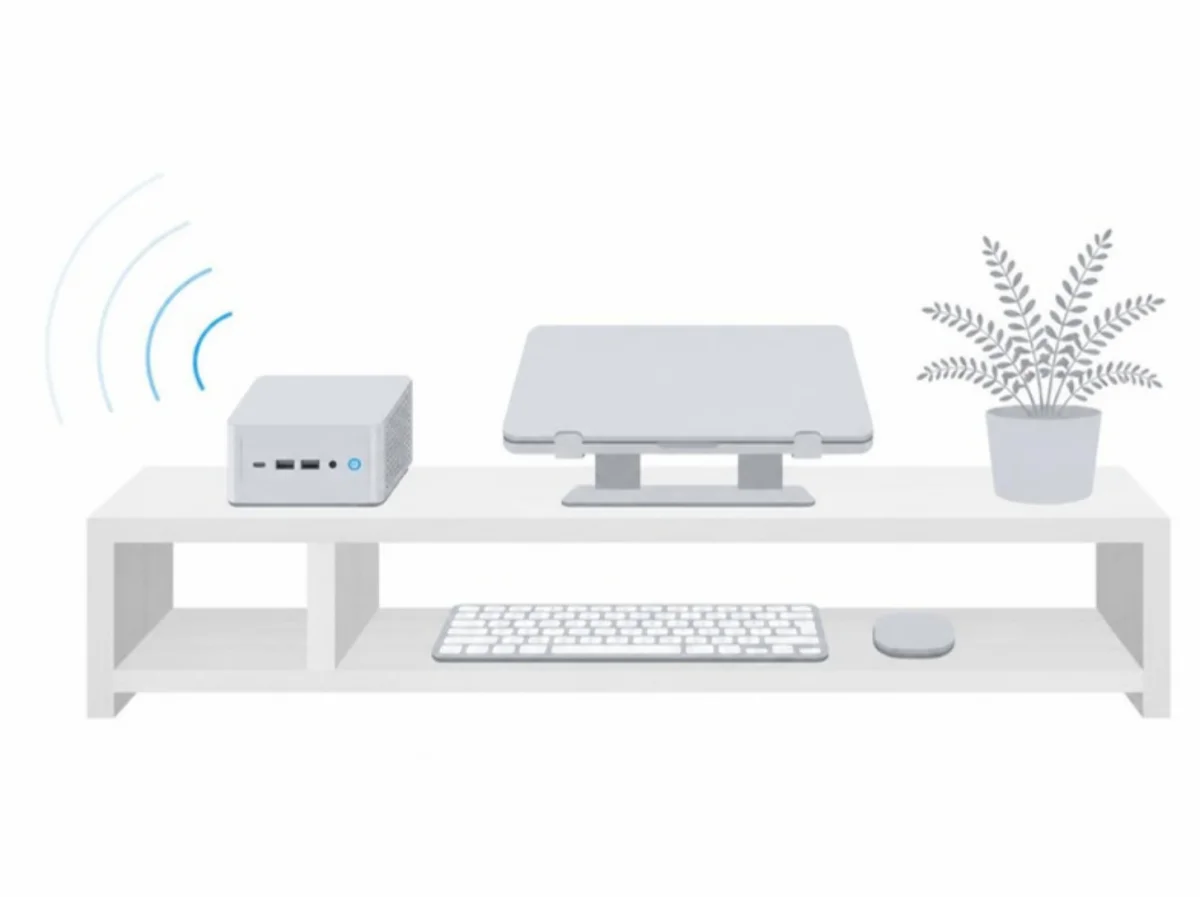
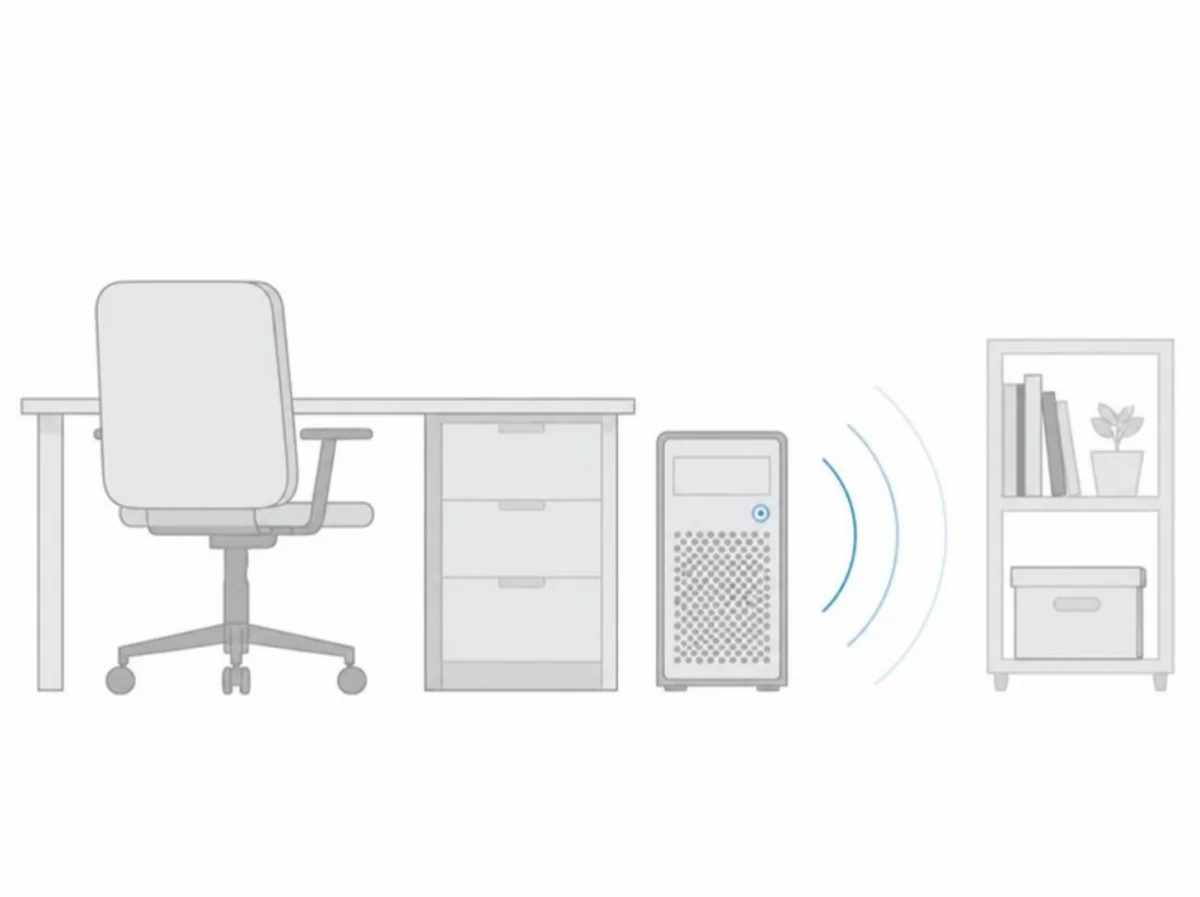
A mini PC belongs on a sturdy, level surface with open air on every vented side. HP asks for 10.2 cm (4 inches) of clearance, and Lenovo rules out beds, sofas, carpet and the inside of furniture.
The HP service guides add rules for desks with several machines. Don't stack computers, or place them so close that one breathes another's warm exhaust. Inside a separate enclosure, that enclosure needs both intake and exhaust ventilation. And a keyboard pushed up against the front of a desktop unit counts as a blocked vent.
Lenovo's guides for the M90q and P330 Tiny cap the air going into the computer at 35°C (95°F) and say not to fit air filtration devices, which "may interfere with proper cooling." They also suggest keeping the computer two feet away from high-traffic areas, and cleaning more often beside one.
Geekom asks for a flat surface that leaves its bottom and side vents clear, and ASUS's overheating FAQ wants a NUC in a "well-ventilated area" with nothing blocking its air vents.
Cleaning schedules differ by maker
Lenovo says to inspect a desktop for dust at least once every three months. Geekom's interval is longer: every 6 months for heavy use in a dusty room and every 12 months in an ordinary indoor office.
Both start outside the case. Turn the computer off and unplug it, then clear the vents with a soft brush or a can of compressed air, the two tools Geekom names. Lenovo goes inside only "If you notice external dust accumulation," and wants the cover closed whenever the computer is plugged in. HP's service guides likewise ask for the plug out before anyone cleans the vents.
Geekom goes further than the others on older machines. After about two years, its abnormal noise article recommends new CPU thermal paste even with no symptoms, calling that "the single most effective way to restore cooling performance on an aging GEEKOM Mini PC." Opening the case may touch the warranty, which Geekom's own articles disagree about, so ask Geekom first.
Why is my mini PC fan loud at idle?
A mini PC fan that races with almost nothing running points to a setting or firmware before it points to heat, going by Geekom's test above: use under 10% in Task Manager and a fast fan.
Right after a cold start, some speed is expected. Geekom's new device article calls 30 to 60 seconds of high fan speed normal and expects the noise to settle within one to two minutes of reaching the desktop. More than five minutes of high speed with no workload, clicking or grinding, or an idle CPU above 70°C are its signs of a fault.
HP's service guides name another idle trigger, Modern Standby. Older devices or drivers "might not fully support Modern Standby, leading to excessive power consumption, louder fan noise during standby," and HP's answer is current BIOS and drivers. On an HP, look at Increase Idle Fan Speed (%) as well. It "Increases the minimum fan speeds over the normal settings", so raising it adds fan speed, not quiet.
Is it the fan or coil whine?
When the fan is slow and the CPU cool but a buzz, hum or chirp remains, Geekom points to coil whine from the power circuits. It calls this "a known characteristic of modern electronics" and not always a defect.
A Geekom article on electrical buzzing treats the sound as normal when it is faint, heard only in a very quiet room, and the PC runs without errors. Whine loud enough to hear from a normal working distance, whine with crashes, or whine that began suddenly may mean a fault.
Geekom's fixes start with power. Switch the Windows power plan from High performance to Balanced, use the original Geekom adapter and try another wall outlet. Next come a BIOS and EC update and PowerMode set to Normal or QuietMode, since lower power states mean less of the switching that makes the noise.
Coil whine on desktops and graphics cards has a section in the computer fan noises explainer linked at the top.
Clicks, grinding and a stopped fan need service
Clicking, grinding and a fan that stops are hardware problems, and the makers send most of them to repair or support.
On a new Geekom, the most common cause of clicking or rattling is "an internal cable that shifted during shipping and is now touching the fan blade." The fix is to open the bottom cover, usually four screws, and move the cable clear.
On older units, Geekom lists an aging fan after a year or more of heavy use, a dent in the casing that presses on the fan bearing (most common on all-metal and dual Ethernet models), and thermal paste dried out after two or more years, which shows up as idle temperatures above 70°C with a loud fan. Each fix means opening the case.
ASUS's NUC checks start in BIOS Setup, where Advanced, Cooling, Performance Monitoring shows fan RPM. A fan reading zero with nothing blocking it means contacting support, and smoke or a burning smell means disconnecting all power cables first. On a P330 Tiny, ICE Thermal Alert writes critical thermal events to the Windows system log, which can point to "malfunctioning fans".
Before contacting Geekom, have the model, serial number and a short video or audio recording of the noise ready.
How loud should a mini PC be?
Makers' declared idle figures run from 4 to 21 dB at the operator position: Apple's Mac mini 4 dB, Dell's OptiPlex Micro 7020 15.4 dB, HP's Elite Mini 800 G9 17 dB and Lenovo's M90q Gen 4 21 dB.
Lenovo's Gen 4 declaration also gives 26 dB with the machine operating. The consumer brands print a different kind of number from their labs: 27 dB at 50 cm for Minisforum's Elite Mini M2 Air in Silent Mode, "as low as 28dB at idle" for the Geekom A5, and "32dB" on four Beelink machines with no load state, distance or standard attached.
Lab figures and declarations cannot be ranked against one another; the reasons are in why decibel ratings rarely compare. Our quietest mini PCs guide sorts every figure by kind and also covers fanless models.
More on quiet computers
For a whole tower rather than a small box, see the quietest desktop PCs. A small form factor build can start with the quietest PC fans and quietest low-profile CPU coolers, and a home server or NAS beside the mini PC has separate fixes in how to make a NAS quieter.
The settings here come from ASUS, Lenovo, HP, Dell, Geekom, Beelink and Apple documents read on November 24, 2026. Dell's manual and Geekom's help center opened only in a browser, and Beelink's article only as an Internet Archive copy after its live page went missing. We did not change a BIOS setting or run a mini PC to write this page.