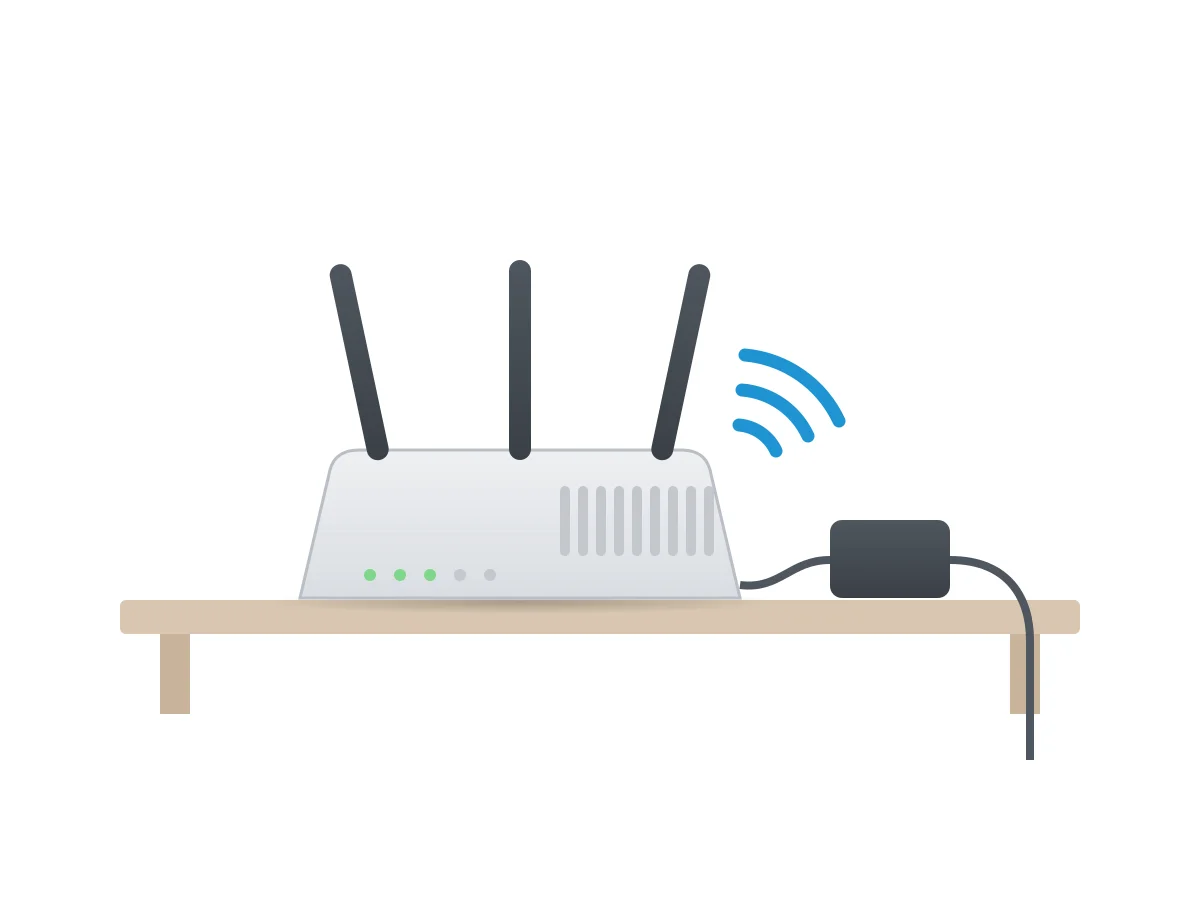
A thin whine from the shelf where the internet lives is one of the most common router noises, and it often has nothing to do with a fan. Every router, mesh point and cable modem has coils in its power circuits and a separate adapter, and both can sing under load.
Fans do turn up in a few boxes: Xfinity's own gateways, the ASUS RT-AX89X and the TP-Link Archer GE800 among them. This page sorts the sounds by source, using support articles, manuals and firmware notes from ASUS, TP-Link, NETGEAR, eero, Google, Linksys, Synology and Xfinity. Where a sound has no maker page behind it, we point that out.
Why is my router making a high-pitched noise?
A steady high whine from a router or modem is usually coil whine, from the board or its power adapter. Not one router or modem maker we checked has a support page on it, so the explanation comes from PC makers.
Corsair's help center describes the effect in power supplies and sums it up in one line: "Coil whine is not exactly a defect, but rather a byproduct of the components working as intended." MSI's notebook page goes further and says it "can occur on any electronic device that uses coils or inductors". A router fits that description. The physics, and why the pitch can shift with load, is covered on our power supply noises page, so we will not repeat it here.
Some people hear it and others in the same room do not, because the tone can sit high in the range of hearing. If it bothers you, find out which box is singing before doing anything else. Hold your ear close to the router, then the modem, then each power brick, with the lights on and traffic running.
A whine that follows your traffic
Plenty of owners notice the sound swell during a large download or a video call and fade when the network goes quiet. That pattern fits coil whine, since the current through the coils rises with the work the chips do. It also fits a fan, on the few routers that have one.
No maker we found gives a pitch or a volume where normal coil noise ends and a fault begins.
Fans in gateways, gaming routers and a few flagships
A router fan whirs or hums rather than whines, and it usually speeds up as the box warms. Xfinity gateways from the XB6 up, the ASUS RT-AX89X and the TP-Link Archer GE800 are the fan-cooled models in our sources.
The Xfinity overheating article states that "Our Xfinity Advanced Gateways (XB6 and higher) are equipped with internal fans" built "to keep them at an ideal operating temperature." Since those gateways are rented, a loud one goes back to Xfinity rather than to a hardware maker.
ASUS documents the RT-AX89X fan in detail. Its FAQ explains that the fan starts when the router powers on and will "automatically adjust the speed according to the current environment and system temperature." There are five modes, Auto, Disable, Low, Medium and High, and Auto is the default. Low holds the fan at "around 750RPM" and Medium at "around 2000RPM", with High a little faster still.
On TP-Link's side, the GE800 picked up a control through firmware. The US release notes for version 1.2.1, Build 20250610, published 2025-07-15, list "Added fan mode adjustment function." Older firmware has no such setting, so update before hunting for one.
How loud a router fan gets
For the RT-AX89X, the FAQ answers with "Around 39~45dB." That is the only fan figure we found from any router maker, and ASUS hedges it: "The test data is for reference only, the actual value would be affected by the environment, the ambient sounds, or different measurement software/devices."
It gives no distance and no weighting. Read our dBA explainer before comparing that number with anything else on this site.
Turning the fan down, and what that risks
On the RT-AX89X, Auto mode lets you set a start temperature, a stop temperature and quiet hours. ASUS gives the example of a fan that stops overnight with an inactive time of "22:00 ~ 06:00", and warns that "Please make sure the system time is correct, otherwise the fan will not stop at the correct time".
Turning it off entirely is where the risk sits. "If fan is set to disable, it may cause the router overheat when router is under high load conditions and active the overheat protection; it will reduce the router performance." The FAQ then recommends Auto.
An RT-AX89X used as an AiMesh node behind a different ASUS router cannot have its fan adjusted, and follows the default setting.
Why heat makes every router sound louder
Fans spin faster, and coils and adapters work harder, when a router runs hot. Warm is expected; eero says its units "are expected to get warm when they're turned on and operating." The limits makers print sit around 40°C room temperature.
| Maker | What the maker prints about heat |
|---|---|
| TP-Link (Deco range) | Deco "could work continuously without any problems/safety hazards at a room temperature of 40 °C/104°F" |
| NETGEAR (Orbi) | "Orbi devices safely operate in temperatures up to 40° C." |
| Synology (RT6600ax) | Operating temperature "5°C to 40°C (40°F to 104°F)" |
| Google (Nest Wifi Pro) | "Do not expose your device to temperatures above 140° F (60° C)" |
| Xfinity (gateways) | Gateways "will automatically reboot to protect them from damage" when too hot |
Load matters as much as the room. For its Nighthawk 5G mobile routers, NETGEAR describes warmth and heat warnings on the screen and adds that "These symptoms are normal and occur depending on the load your device is under." Xfinity links heat to speed as well, warning of connectivity issues "as higher temperatures will cause a reduction in the performance".
Placement rules from the makers
The advice overlaps closely from brand to brand. Give the router open air, keep it off soft surfaces, and do not stack it on other electronics.
- Xfinity: not on "carpet, rugs, or blankets", not in cabinets or drawers, and away from heat vents, direct sun and game consoles.
- TP-Link: "Avoid placing your Deco on top of any running electronic devices."
- Synology: "Ensure the air vents on the product are not blocked by other equipment or walls."
- Google: "Be sure the power adapter and Nest Wifi Pro are well ventilated when in use."
- eero: in the open, uncovered, on a stable surface rather than a cushion.
Xfinity adds a cleaning step for gateways with fans: "Wipe away dust collecting on the top, rear, or bottom of the gateway with a dry cloth."
Why is my router or modem clicking?
No support page from these makers explains a click. A click is still worth tracing, because it can point to several things outside the router.
On a fan-cooled router, a soft tick as the fan starts or stops can line up with the start and stop temperatures ASUS describes. A sharper click from the same shelf may come from a battery backup, whose relays switch as the wall voltage moves; our UPS noises page covers that. Watch the lights when it happens. If every click comes with the status lights going dark and starting over, the box is restarting, and an Xfinity gateway does that on purpose when it gets too hot.
Repeated restarts with a click, a smell or an adapter that stays hot are reasons to stop and contact the maker.
A buzzing or hissing power adapter
The adapter is a common source of buzz and hiss, and the makers agree on one rule for it: use the one that came in the box.
"We strongly recommend that you only use the power adapter that is included with your NETGEAR product," reads the NETGEAR adapter article. The wrong one can leave a product "damaged and unsafe to operate". Warmth on its own is fine, since "Your NETGEAR product's power adapter might be warm to the touch when plugged in." For a new one, "contact NETGEAR Support."
Google is stricter: "Only power your Nest Wifi Pro with the included adapter," with fire, electric shock, injury and damage named as the risks of doing otherwise. Synology says to "Only use the power cable included with the product. Using other power cables may result in damage or fire." TP-Link and eero give the same instruction in their heat articles.
None of these pages names buzzing as normal or as a fault. Our reading is narrower: a noisy brick is the cheapest part to swap, so ask the maker for a genuine replacement before giving up on the router itself.
When a noisy router needs replacing or support
Heat is the clearest warning sign in the makers' own words. "If your router feels extremely hot, it could be a sign that it's about to fail due to overheating components," the Linksys upgrade article warns, and it lists a defective unit, worn parts and poor ventilation among the causes.
Mesh owners have an easy test. TP-Link and eero both suggest comparing the temperature of one unit with the others; a slight difference is expected, and anything out of the ordinary should go to their support teams.
Home repair is off the table. Google's guide says "Do not attempt to repair your Nest Wifi Pro yourself" and to "Contact customer service if Nest Wifi Pro isn't working properly or has been damaged." On a router that gets too hot, it says to "disconnect it from its power source" and to "move it to a cooler place and do not use it until it has cooled." ASUS treats a worn fan the same way: "It is not recommended to replace the fan by yourself," because opening the casing "will affect your product warranty rights."
A rented gateway follows a different path. The Xfinity overheating article points owners to Xfinity Assistant and its support center, since the hardware belongs to the provider.
Quieter corners for a home network
A router rarely sits alone. If it shares a shelf with a battery backup, the quietest UPS battery backups guide and our UPS noises page cover beeps and clicks. Network storage brings drive and fan noise of its own, which the quietest NAS guide ranks by maker figures. A small always-on server is another candidate, and the quietest mini PCs guide covers those.
For the coil whine physics, see power supply noises. For the room around the desk, see the quiet home office and, if the router lives near a bed, the quiet bedroom.
Arris SURFboard, Motorola and Ubiquiti publish no support page on device noise or fans that we could read, so they do not appear above.